
How to Use Golf GPS, Club Recommendation and Shot Tracking in VPAR
VPAR's GPS shows you distances on every hole of over 40,000 courses. Add your clubs to your Golf Bag and it will recommend a club for each shot; track your shots and you'll learn how far you really hit each one. Here's how to use all three.
Using GPS while you score
- On the scorecard, tap the hole number of the hole you want to see (or the GPS tab).
- The hole map shows distances to the front, centre and back of the green.
- Tap the tee colour to see the distance from that tee.
- Tap the location icon to see the distance from where you're standing (when you're within 50m of the hole).
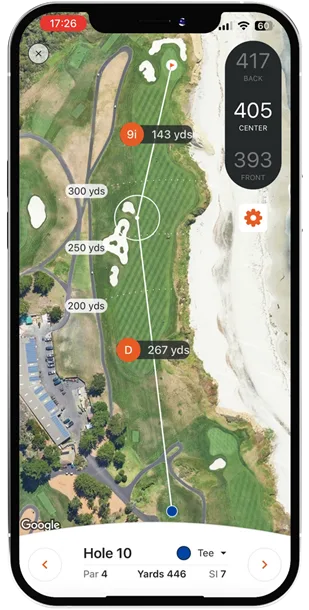
Tap the settings cog on the GPS screen to lock the map zoom, turn club recommendation and distance rings on or off, change the text size and edit your club yardages.
GPS only mode
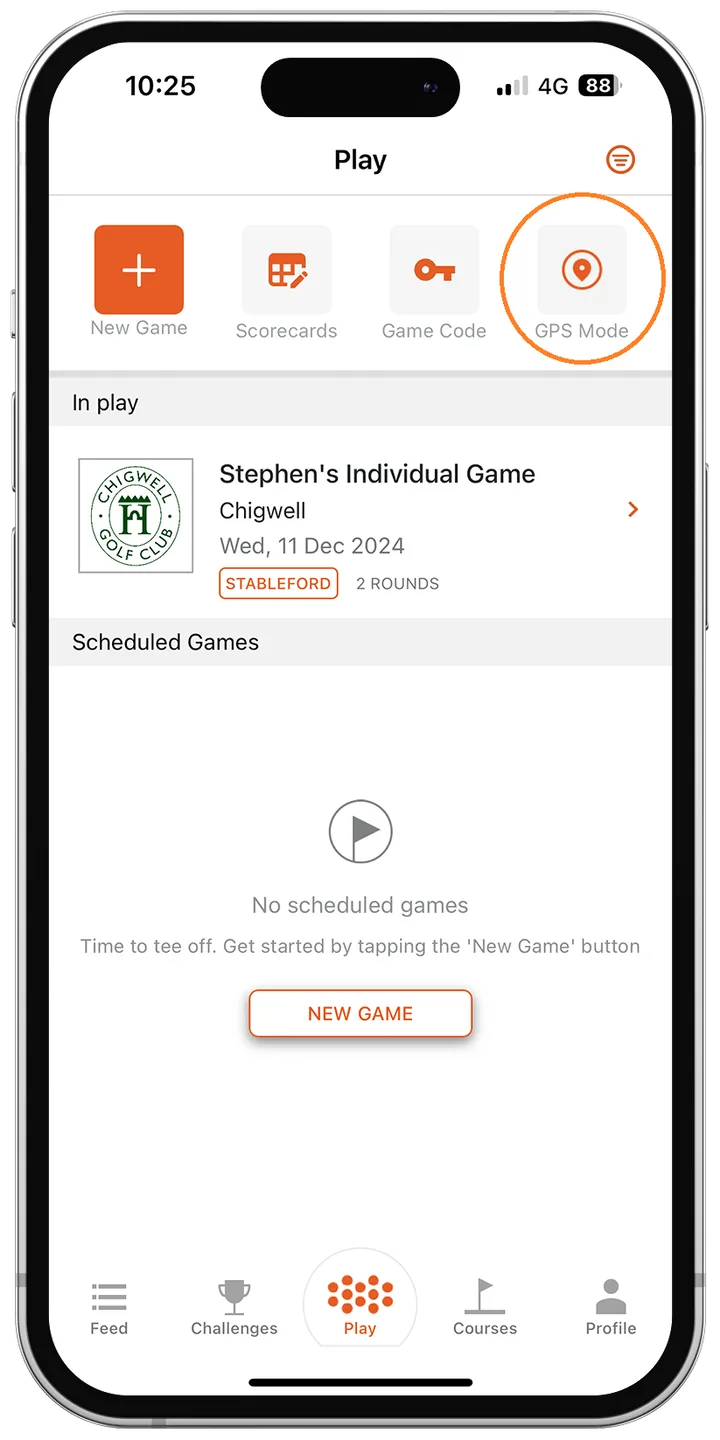
Don't want to keep score? You can use GPS on its own:
- Tap Play, then GPS Mode, and choose your course, or
- Tap the Courses tab, find your course and tap Course GPS.
Course notes
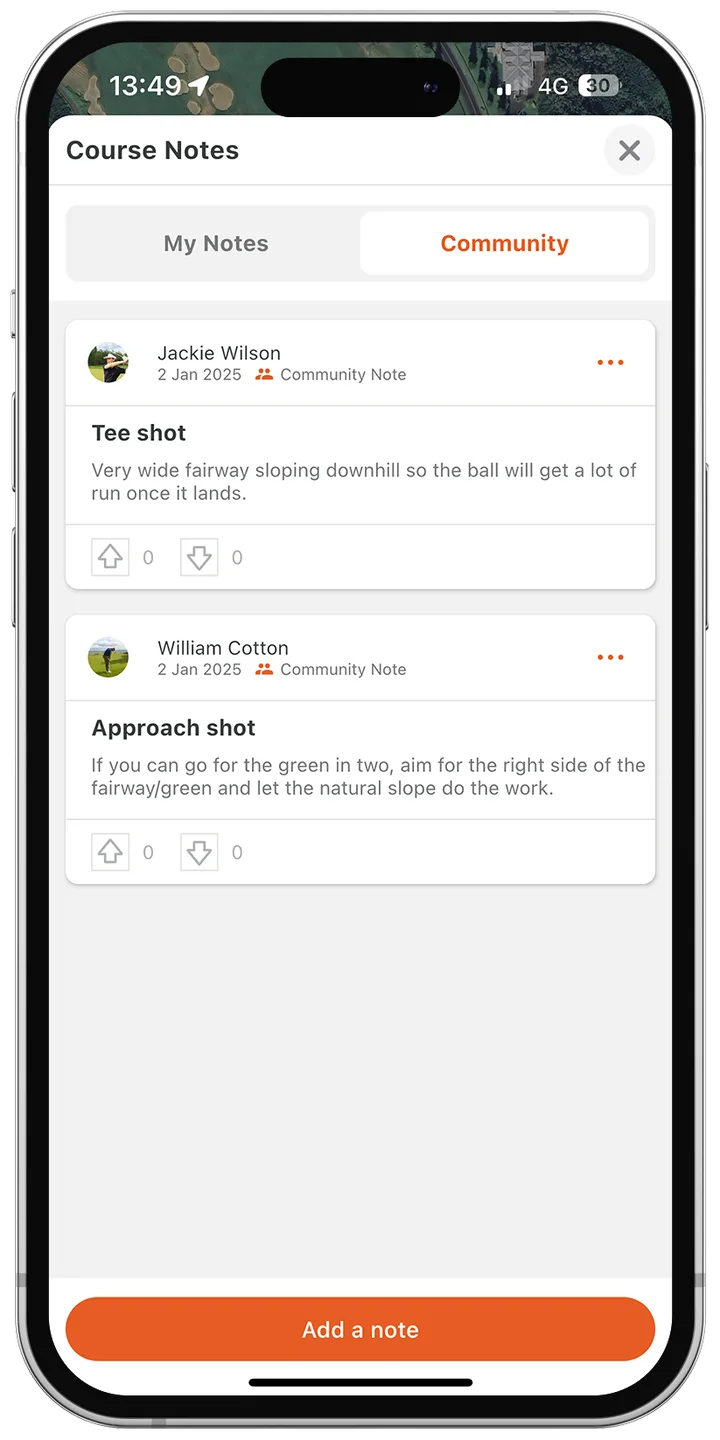
On the GPS screen, tap the course notes icon to read and leave notes about the hole you're on. Notes can be private, just for you, or shared with the community, such as where to aim off the tee or how a green breaks. Tap Add a Note to write one.
Set up your Golf Bag for Club Recommendation
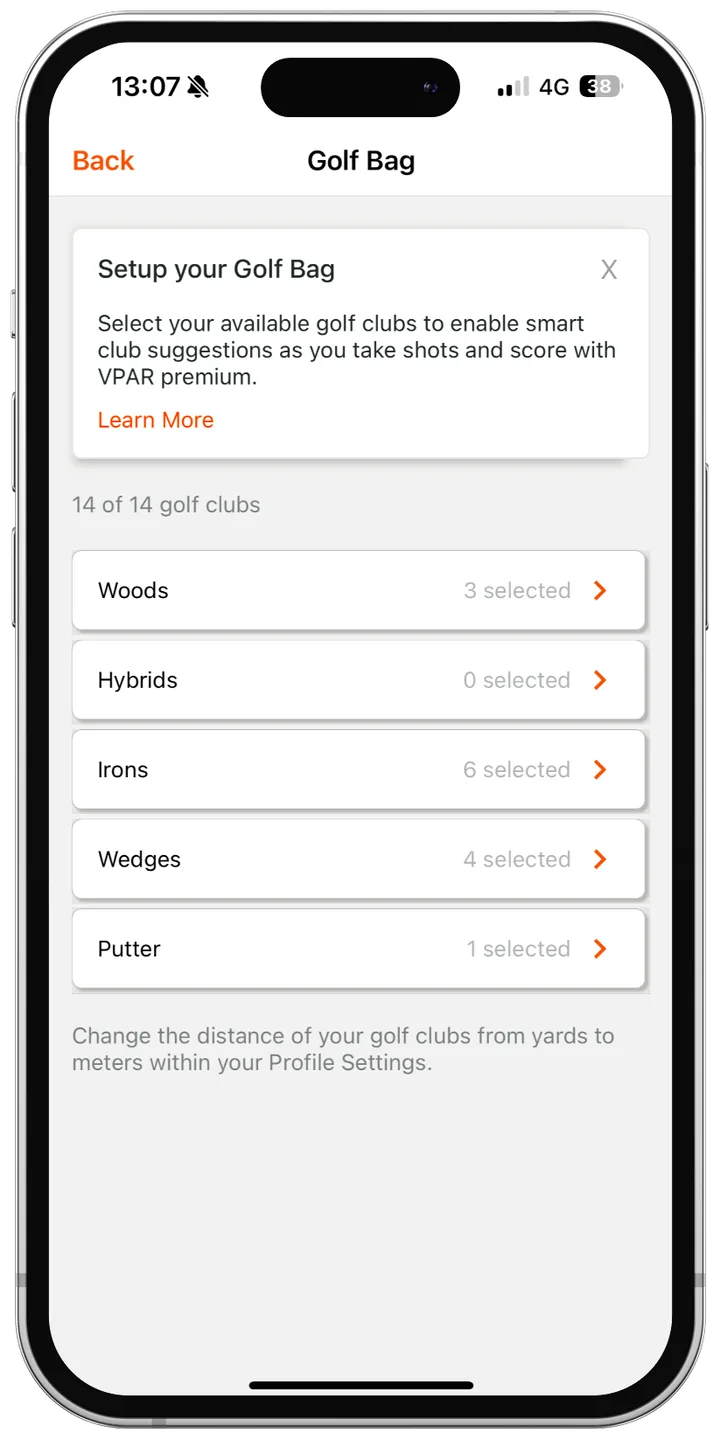
Club Recommendation uses GPS and your own distances to suggest which club to hit from where you are. It needs to know what's in your bag first:
- Go to the Profile tab and tap Golf Bag.
- Tap into each section in turn: Woods, Hybrids, Irons, Wedges and Putter.
- Toggle on each club you carry and enter the average distance you hit it.
Tip: Be realistic: enter how far you usually hit each club, not your best-ever shot.
Golf Bag and Club Recommendation are VPAR Premium features.
Track your shots
Shot Tracking records each shot you play, so you build a true picture of your distances and misses.
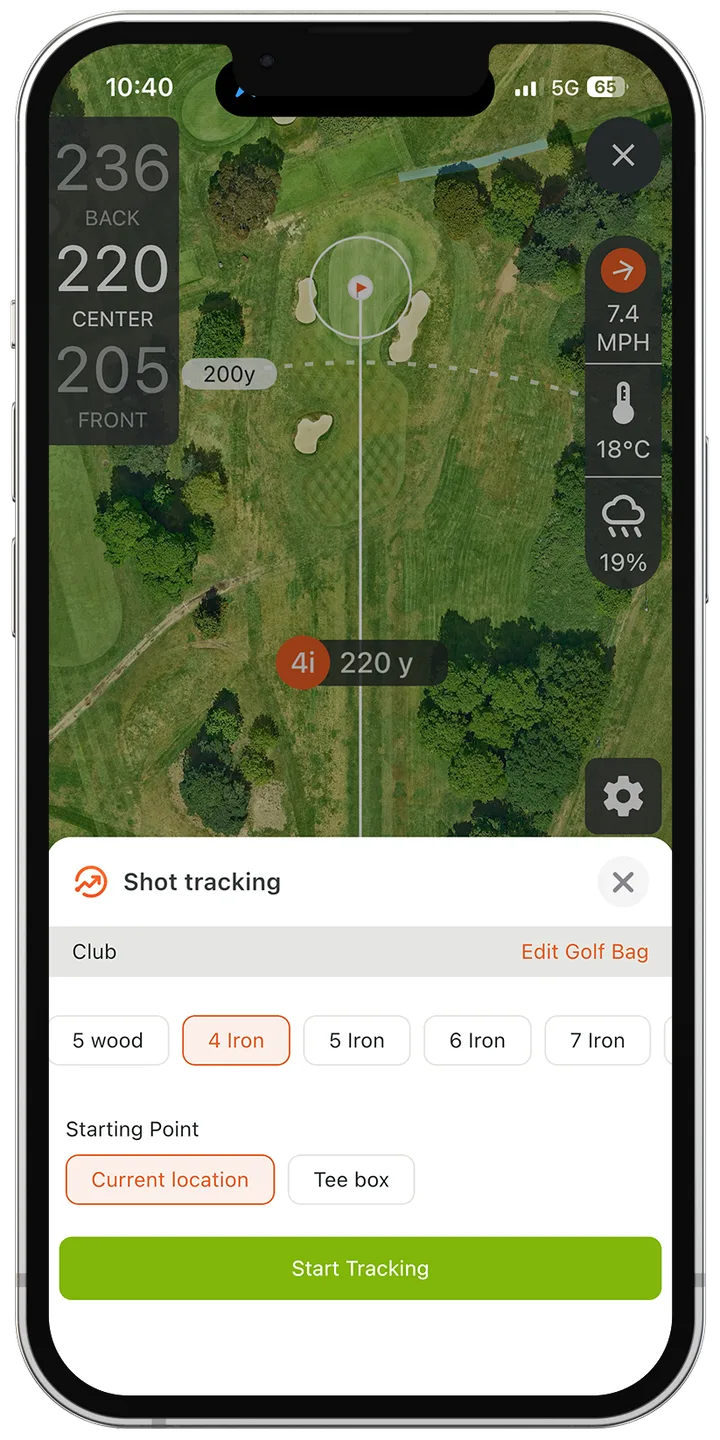
- On the GPS screen, tap the Shot Tracking button.
- Choose the club you're hitting and tap Start Tracking.
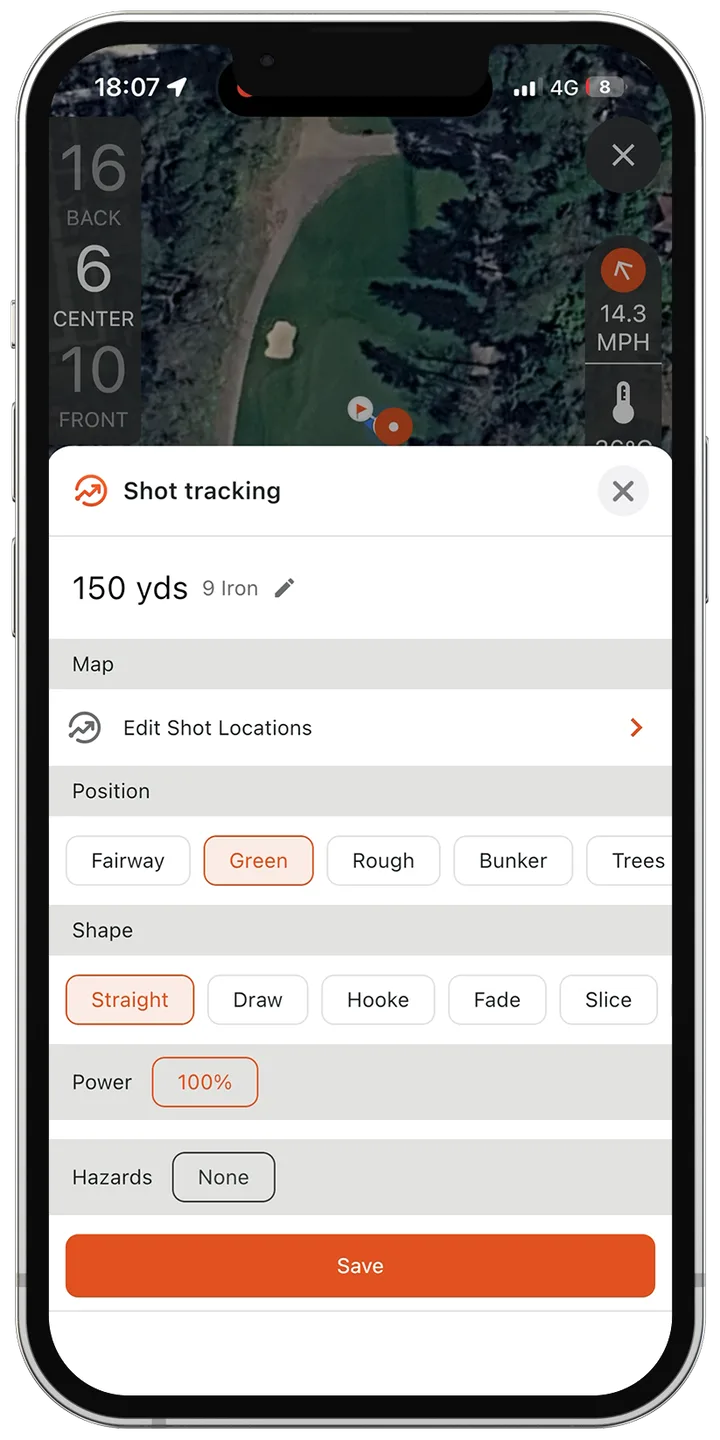
- Walk to your ball, then tap Stop Tracking.
- Add the details: where it finished, its shape, how hard you hit it, and the club if you need to change it. You can also move the shot's location if needed.
Review your distances and fix mistakes
Go to Profile, then Shot Tracking, and choose a club to see your average distance, how far each shot shape travels and where you miss. Tap Rounds to see shots from a particular round.
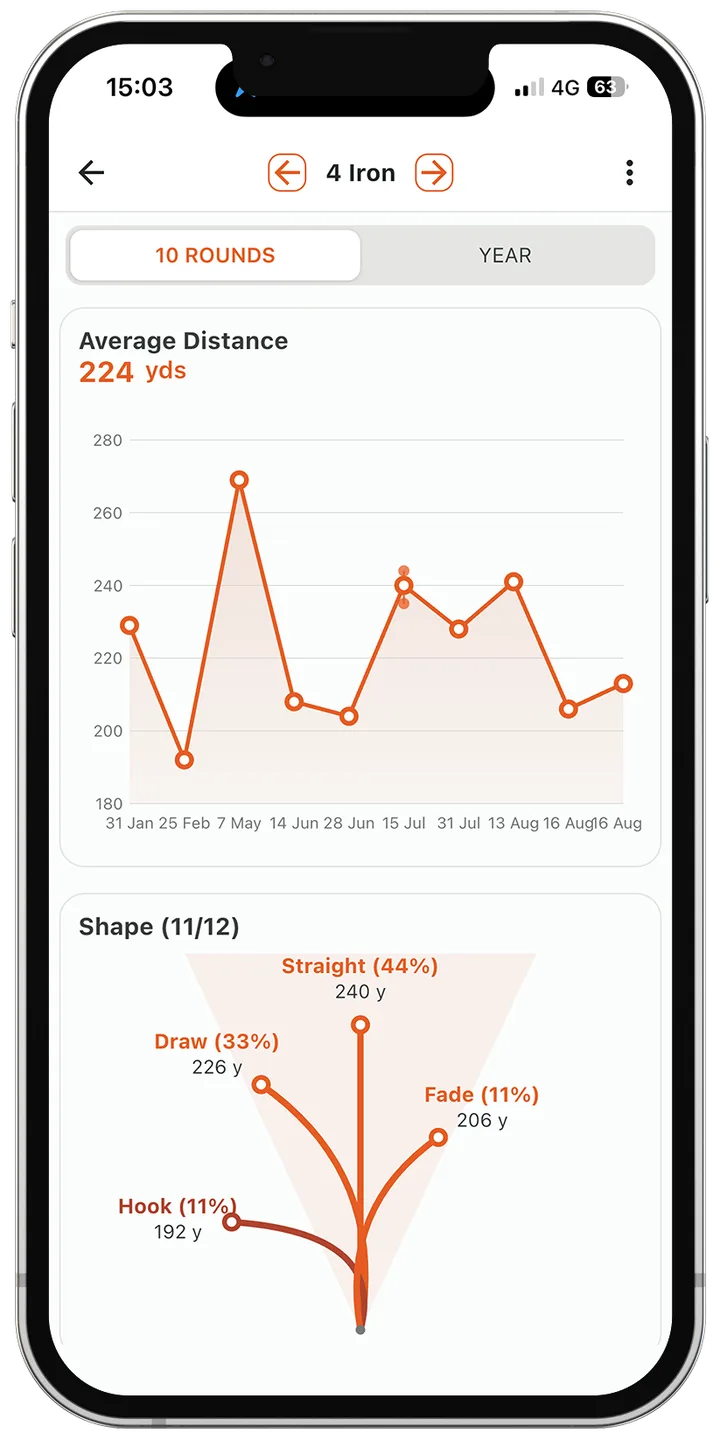
- To edit a shot, tap it and update the details, or drag the orange dot to where the ball really finished.
- To delete a shot (for example, if you forgot to stop tracking), swipe left on it.
Use your data to improve Club Recommendation
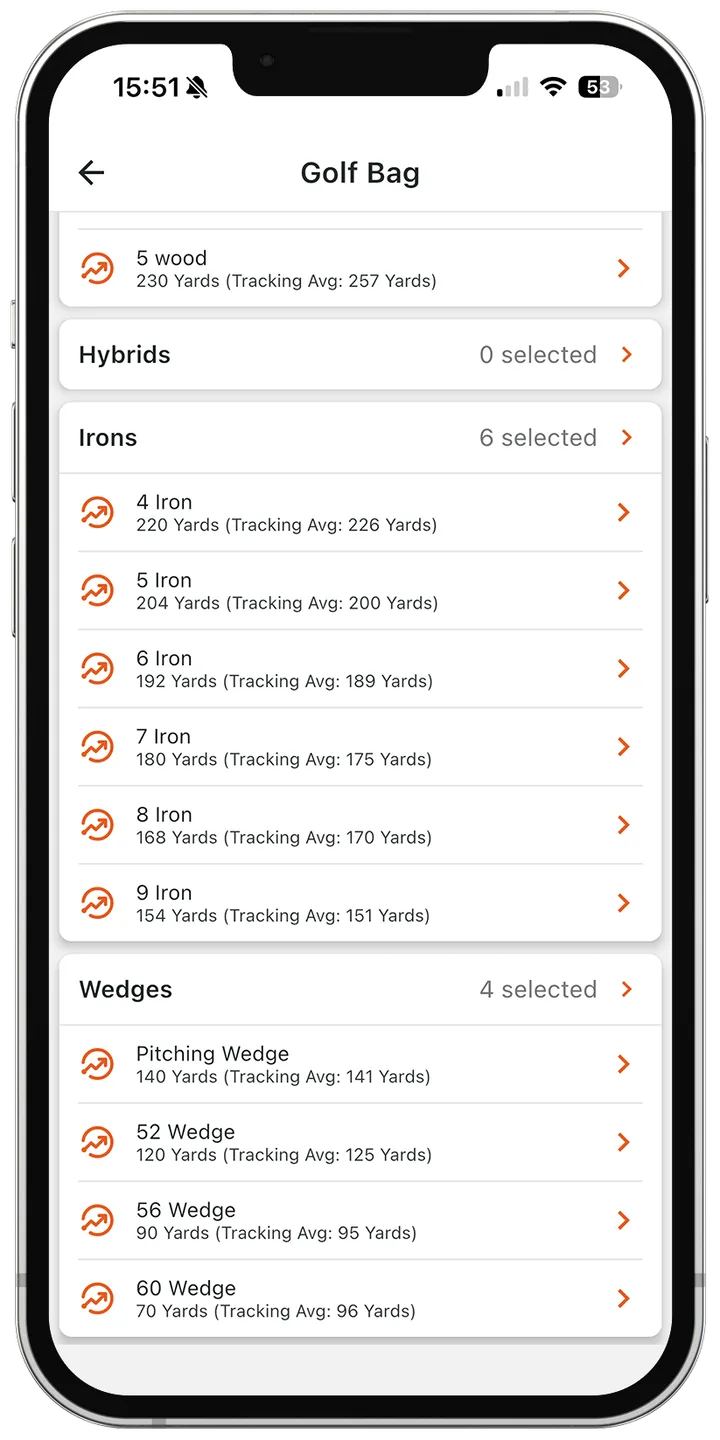
Your tracked averages appear next to the distances you entered in your Golf Bag. Compare the two, update your yardages, and Club Recommendation gets more accurate every round.
Frequently asked questions
- Can I use VPAR GPS without keeping score?
- Yes. Use GPS Mode from the Play tab, or open a course from the Courses tab and tap Course GPS.
- Why isn't Club Recommendation showing?
- Club Recommendation needs your Golf Bag set up with your clubs and distances, and it's a VPAR Premium feature. You can also check it's switched on in the GPS settings.
- What happens if I forget to stop tracking a shot?
- Go to Profile, Shot Tracking, Rounds, open the round and swipe left on the shot to delete it, or tap it to correct the details and location.


Golf terms in this guide
More help
This guide brings together these articles from the VPAR help centre: