
How to Set Up and Join a Golf Game in VPAR
Setting up a game in VPAR takes a couple of minutes. Once it's created, everyone in the game can see it in their app, scores update live, and the leaderboards build themselves. Here's how to create a game, add your playing partners and join a game someone else has set up.
Step 1: Start a new game
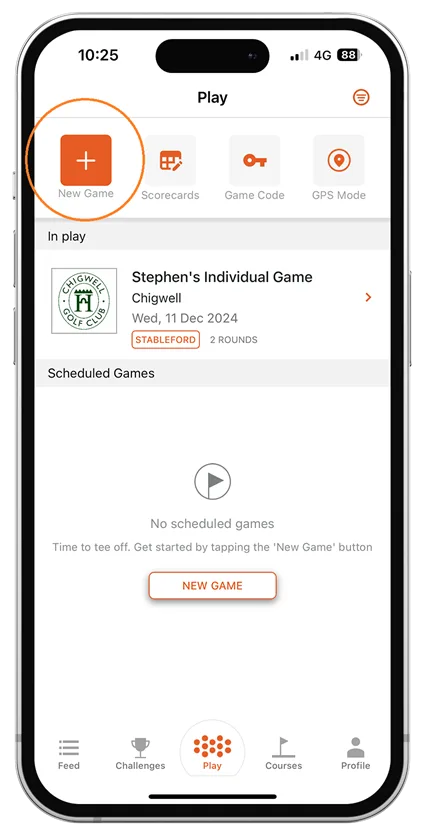
- Open the VPAR app and sign in.
- Tap Play in the bottom menu.
- Tap New Game.
Step 2: Name your game and choose a scoring format
On the Game Details screen you can:
- Give your game a name, so everyone recognises it
- Choose the scoring format: Stableford, Strokeplay, Matchplay or Modified Stableford
- Choose how many rounds the game has (pick more than one for a multi-round event)
- Decide whether the round should count towards your VPAR Handicap
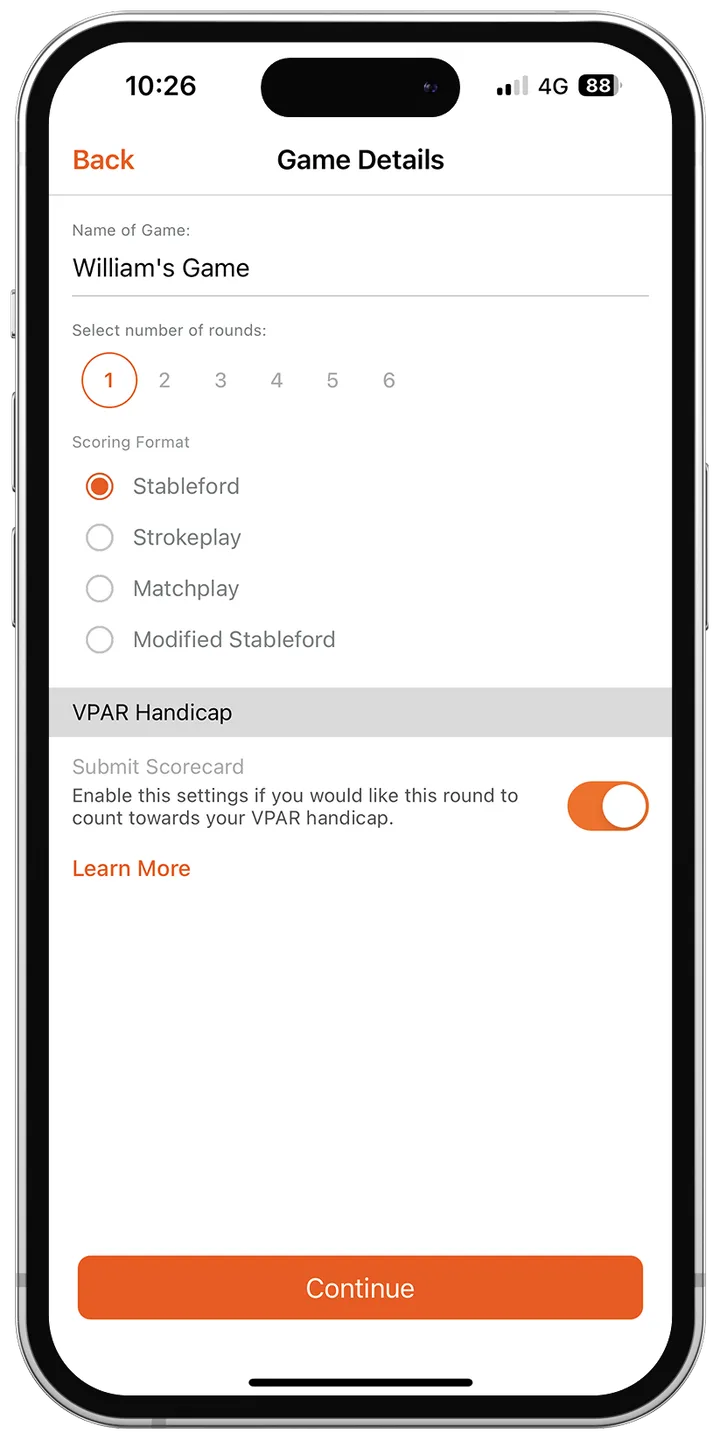
Tap Continue when you're done.
Step 3: Set up the round
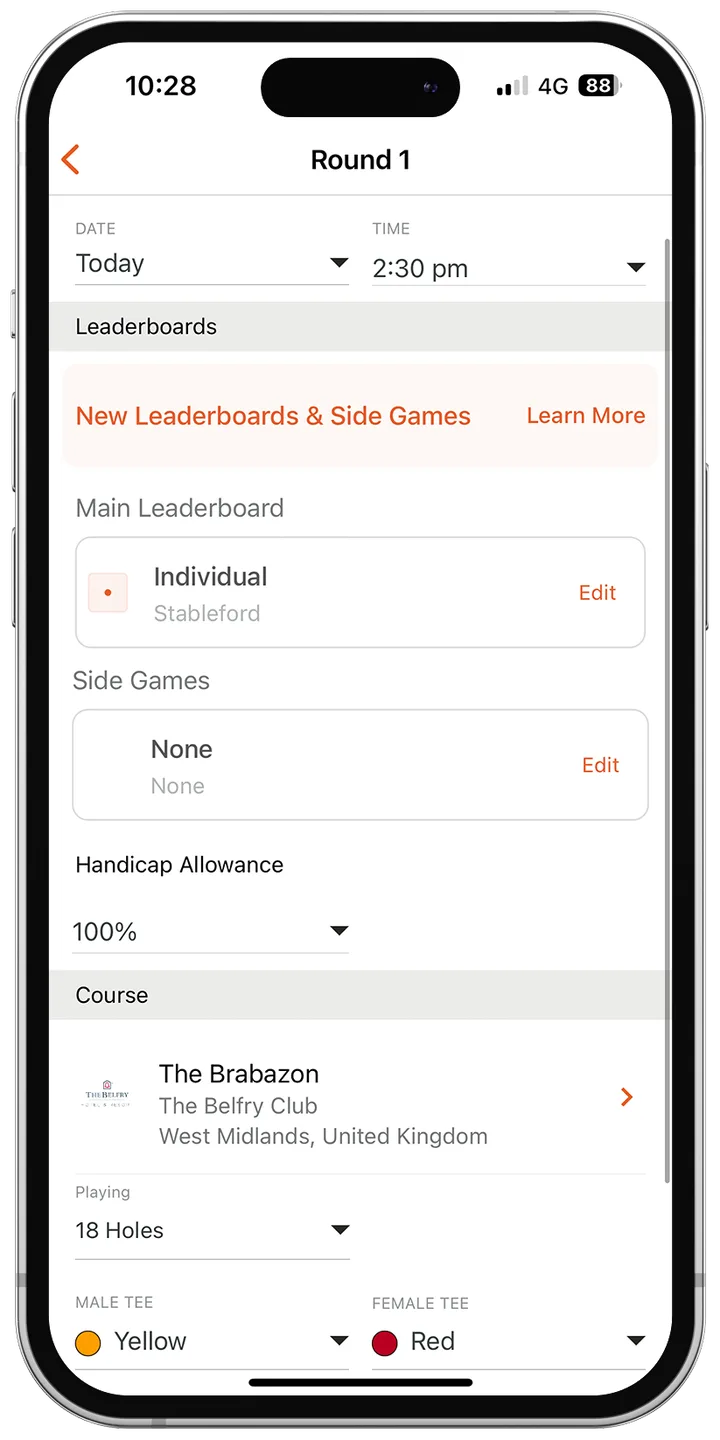
Next, set the details for the round itself:
- The date and start time
- The handicap allowance (the percentage of handicap players receive)
- The game format. It's an individual game by default; choose a team format to play pairs or fourballs, and pick how many scores count on each hole (for example, best 2)
- The course, and whether you're playing 18 holes, the front or back 9, or a custom set of holes
- The tee colour you're playing from
Add a side game (optional)
Each game can have two leaderboards: the main leaderboard for your chosen format, and one side game, such as Skins, Nassau, Las Vegas, Split 6, Flags or Defender. If your game has a team element, choose the team format as the main leaderboard. Adding a side game is a VPAR Premium feature.
Step 4: Add tee times and players
The Tee Times screen is where you build your groups. You can add tee times, set each group's start hole and time, add and remove players, edit playing handicaps and, for team games, name the teams.
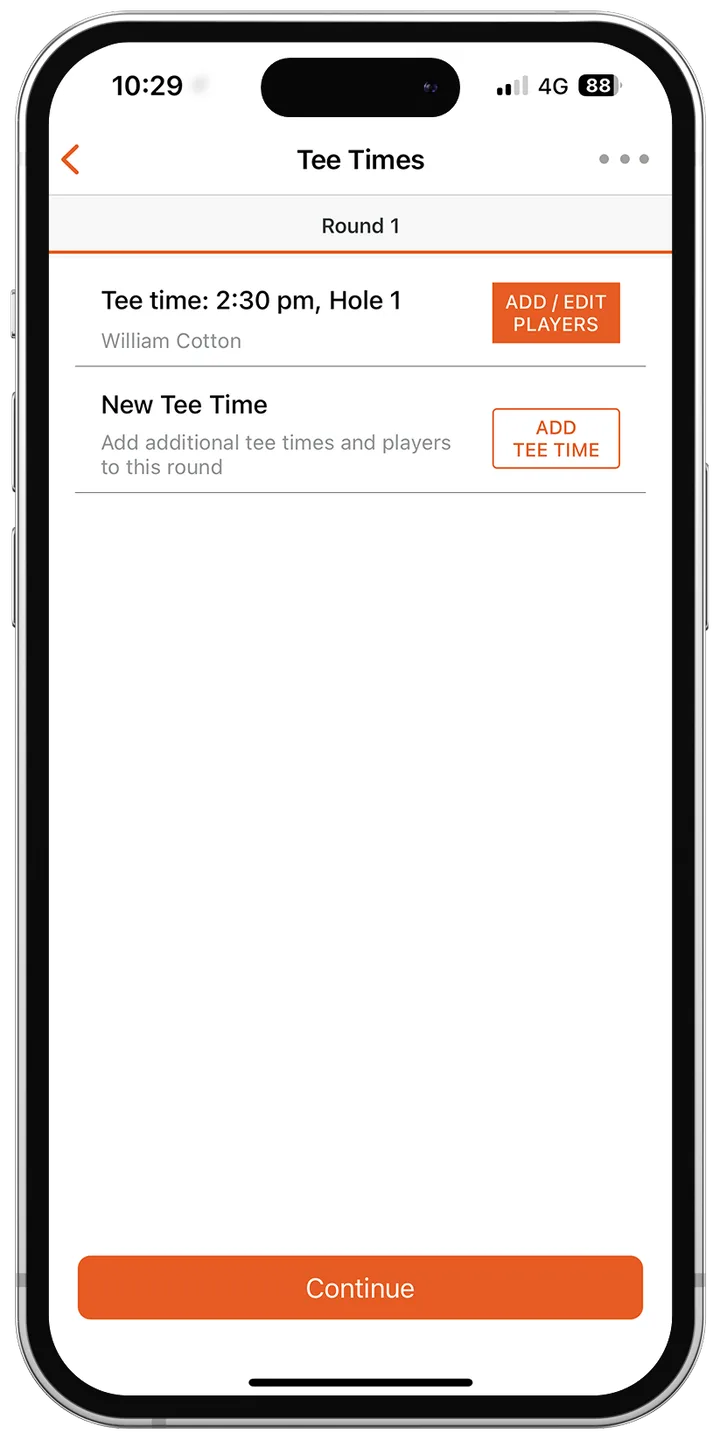
- Tap the orange Edit button next to the first tee time.
- Tap an empty space in the tee time to add a golfer.
- Choose how to add them: pick someone you already follow from the list, search for another VPAR golfer by name or email address, or tap Create to add a guest who doesn't have a VPAR profile.
- Tap Save when the group is complete.
- To add another group, tap Add in the New Tee Time row and repeat.
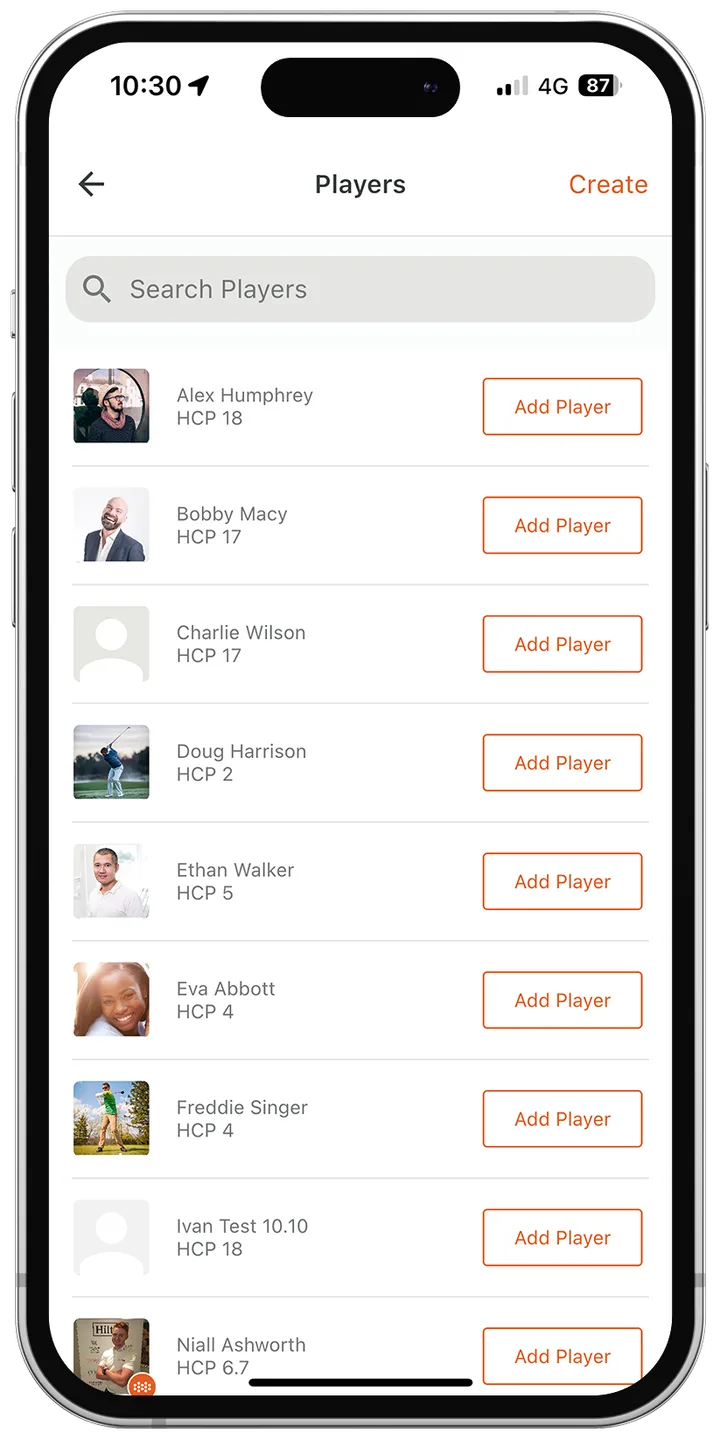
Tip: Set a profile picture on your own account so friends can easily find you when they search.
Edit a player's handicap or remove a player
- To change someone's playing handicap for this game, open their tee time and tap the pencil icon next to their name.
- To remove a player on iPhone, open the tee time and swipe left on their name, then tap Remove Player.
- To remove a player on Android, open the tee time and press and hold their name until Remove Player appears.
When everything looks right, tap Continue. You'll see the game overview, where you can start scoring or go back and make changes.
How to join a game someone else has set up
There's nothing to do: if a friend adds your VPAR profile to their game, it appears automatically when you tap Play. If you can't see it, the organiser has probably added a different profile, so ask them to check they've picked the right one.
Joining with a game code (corporate events)
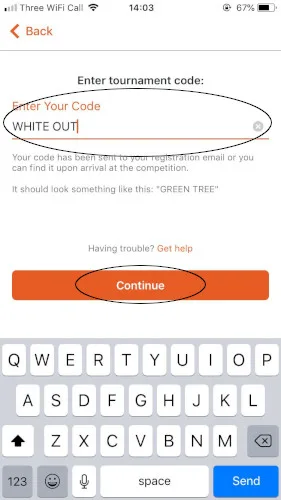
At corporate golf days run by VPAR, you may be given a joining code. Tap Play, then Game Code, enter the code and tap Continue. If your profile is recognised you'll see the round overview and can start scoring. If not, the organiser needs to confirm who you are and add you to a tee time. You can also check in with a code without a VPAR account by finding your name on the player list.
Frequently asked questions
- Do my playing partners need the VPAR app?
- No. You can add guests without a VPAR profile and score for them yourself. If they do have the app, the game appears in their Play tab automatically once you add them.
- Can I play a team game in VPAR?
- Yes. Choose a team format such as Pairs or Fourball when you set up the round, then pick how many scores count on each hole. Matchplay games like 2 v 2 fourballs and singles are also available.
- How do I set up a multi-round game?
- Choose more than one round on the Game Details screen. You'll then set the date, course, format and tee for each round in turn before adding your tee times.


Golf terms in this guide
More help
This guide brings together these articles from the VPAR help centre: